Remind
Schools & Districts Higher Ed Teachers Families Partners
Log in
  1. Help Center
  2. Using Remind
  3. Manage classes

How do I add another owner to my class?

Avatar
Veronica D. Joseph
Customer Support

For class owners.

You can make another person a co-owner of your class. As a co-owner, they will have the same capabilities as you. This means that they can manage the class participant list, send announcements or chat messages to participants as well as change the class settings. 

To add another owner to your class, they must first be a participant in your class. Once you have ensured they are a participant, you can follow the instructions below to give them co-ownership of your class.

Please note: For privacy reasons, replies to announcements are visible only to the person who sent the message. Replies to announcements are not visible to all co-owners, just the original sender. 

This article contains the following sections:

  • Adding an owner on the web
  • Adding on owner with phone apps
  • Frequently asked questions

Adding an owner on the web

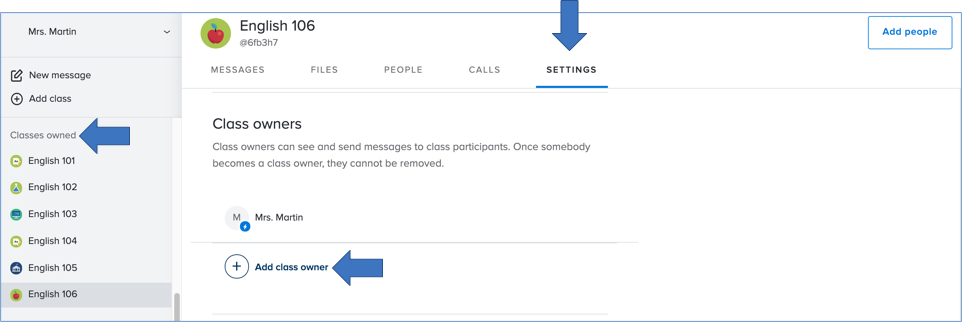
  1. Select the class under the Classes Owned section of the dashboard. 
  2. Click the Settings tab.
  3. Scroll down until you get to the Class owners section, and click Add class owner.mceclip1.png
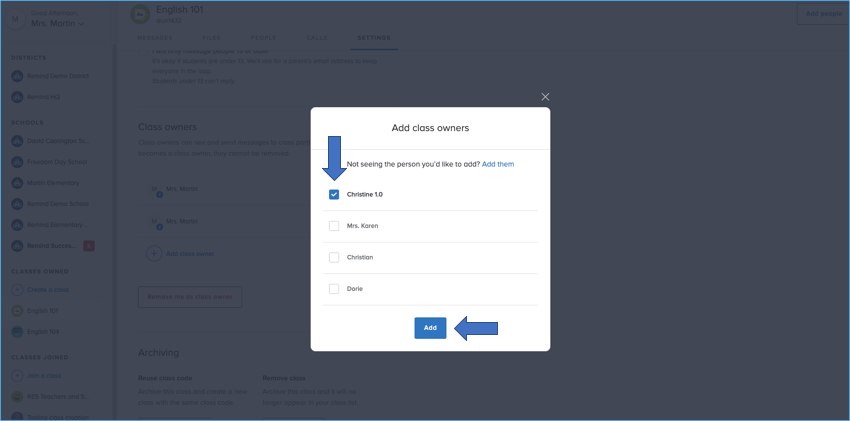
  4. Choose the person from the pop-up list of eligible co-owners and click Add. mceclip4.png
Return to top


Adding an owner with phone apps

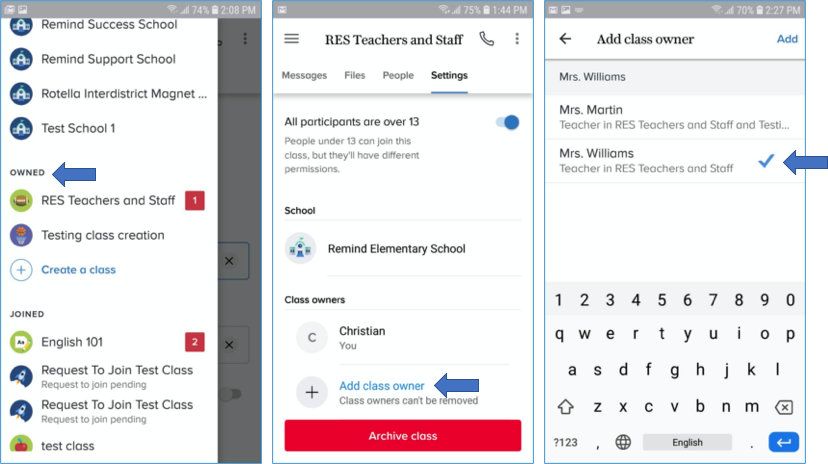
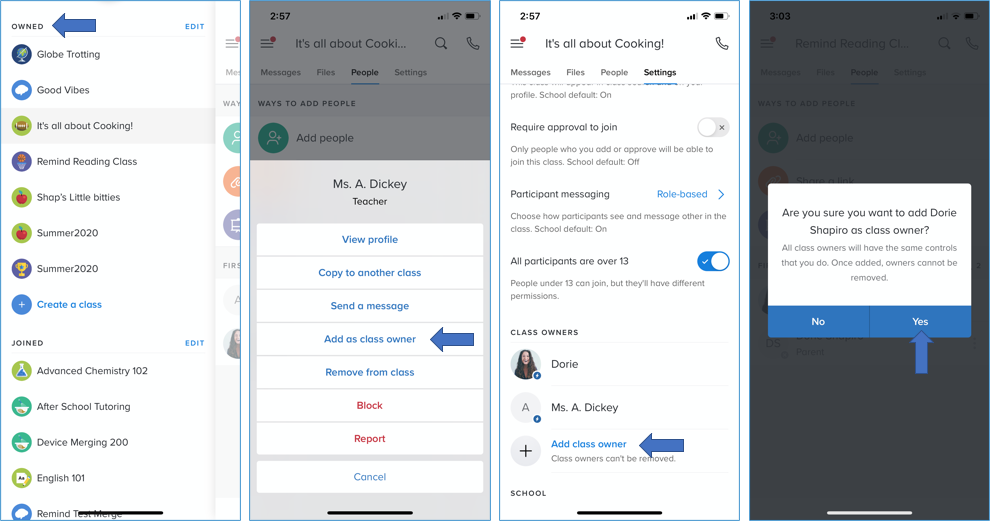
  1. Click on the class under the Owned section of your app. 
  2. Select the Settings tab.
  3. Tap Add class owner. 
  4. Choose the person you want to give class ownership to from the list. 

iOS
mceclip10.png

Android

mceclip9.png

Return to top


FAQs

Q: I've been added as an owner, but can't send out class announcements.

A: You must log into your Remind account online or on the phone app to send announcements.


Q: I've been added as an owner, but can't send private chat messages to other class participants.

A: You might have been added to the class but not made an owner. If the class is showing in your Classes joined section, contact the class owner and share these instructions with them.


Q: Can I message other class owners?

A: Yes, all class participants can message class owners.


Q: How do I remove another class owner?

A: Once you add a co-owner to your class, you won't be able to remove them. There are two ways to remove them. 1. Class owners can remove themselves. 2. If your school uses Remind Hub, admin users can remove class owners from any classes linked to their school.


Q: I'm having trouble adding an owner to my class.

A: Check out our FAQ for troubleshooting.


Return to top


Was this article helpful?
Yes No
985 out of 1695 found this helpful

Why wasn’t this article helpful?

Loader

Related articles

  • I get an error when I try to add a participant
  • How do I add people to my class?
  • Preferred language translation FAQs
  • How do I change my role?
  • How do I submit a request to join a class?

Related articles

  • I get an error when I try to add a participant
  • How do I add people to my class?
  • Preferred language translation FAQs
  • How do I change my role?
  • How do I submit a request to join a class?

Can’t find what you’re looking for? Get in touch!

  1. Help Center
  2. Using Remind
  3. Manage classes

How do I add another owner to my class?

Avatar
Veronica D. Joseph
Customer Support

For class owners.

You can make another person a co-owner of your class. As a co-owner, they will have the same capabilities as you. This means that they can manage the class participant list, send announcements or chat messages to participants as well as change the class settings. 

To add another owner to your class, they must first be a participant in your class. Once you have ensured they are a participant, you can follow the instructions below to give them co-ownership of your class.

Please note: For privacy reasons, replies to announcements are visible only to the person who sent the message. Replies to announcements are not visible to all co-owners, just the original sender. 

This article contains the following sections:

  • Adding an owner on the web
  • Adding on owner with phone apps
  • Frequently asked questions

Adding an owner on the web

  1. Select the class under the Classes Owned section of the dashboard. 
  2. Click the Settings tab.
  3. Scroll down until you get to the Class owners section, and click Add class owner.mceclip1.png
  4. Choose the person from the pop-up list of eligible co-owners and click Add. mceclip4.png

Return to top


Adding an owner with phone apps

  1. Click on the class under the Owned section of your app. 
  2. Select the Settings tab.
  3. Tap Add class owner. 
  4. Choose the person you want to give class ownership to from the list. 

iOS

mceclip10.png

Android

mceclip9.png

Return to top


FAQs

Q: I've been added as an owner, but can't send out class announcements.

A: You must log into your Remind account online or on the phone app to send announcements.


Q: I've been added as an owner, but can't send private chat messages to other class participants.

A: You might have been added to the class but not made an owner. If the class is showing in your Classes joined section, contact the class owner and share these instructions with them.


Q: Can I message other class owners?

A: Yes, all class participants can message class owners.


Q: How do I remove another class owner?

A: Once you add a co-owner to your class, you won't be able to remove them. There are two ways to remove them. 1. Class owners can remove themselves. 2. If your school uses Remind Hub, admin users can remove class owners from any classes linked to their school.


Q: I'm having trouble adding an owner to my class.

A: Check out our FAQ for troubleshooting.


Return to top


Was this article helpful?
Yes No
985 out of 1695 found this helpful

Why wasn’t this article helpful?

Loader

Related articles

  • I get an error when I try to add a participant
  • How do I add people to my class?
  • Preferred language translation FAQs
  • How do I change my role?
  • How do I submit a request to join a class?

Can’t find what you’re looking for? Get in touch!

Reach out to us directly

Still can’t find what you’re looking for? Send us a message and
we’ll get back to you as soon as possible.

Contact us
Terms & Policies

Product

  • Schools & Districts
  • Higher Education
  • Teachers
  • Families
  • Partners

Company

  • About Us
  • Careers
  • Press
  • Resources

Community

  • Connected Educators
  • Trust & Safety
  • Help Center
  • Blog
Terms & Policies